AI Video · PRACTICAL GUIDE
Create a connected AI office scene sequence
Plan connected scenes, reuse character and video references, review prompt deviations, and select clips before upscaling.
Watch the original tutorial
Open the original video on YouTube ↗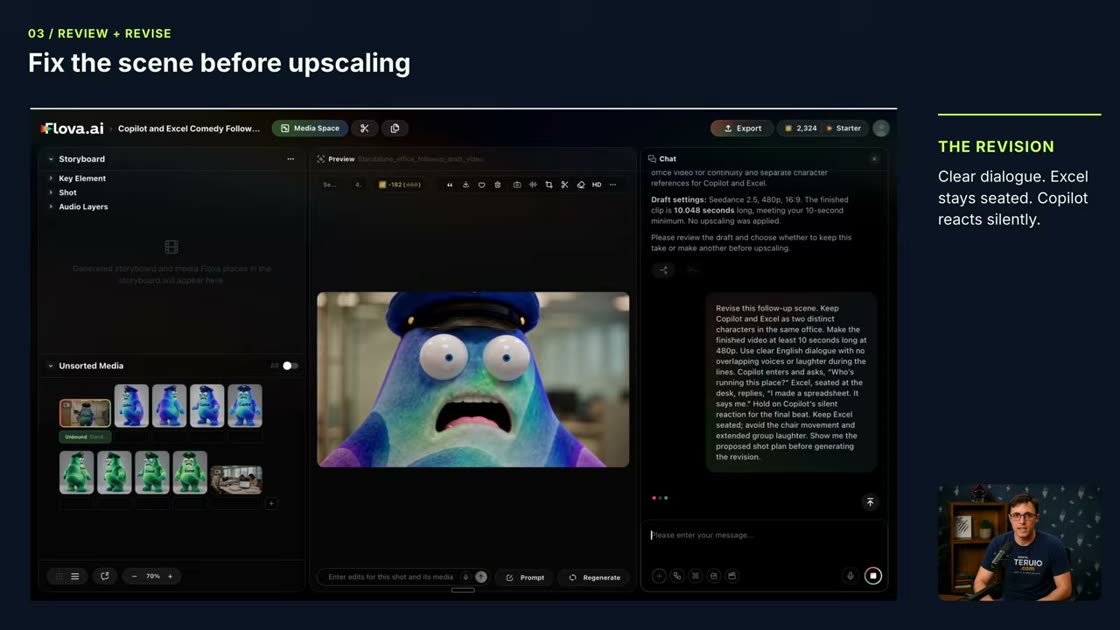
Thiago’s Flova-sponsored demonstration builds five connected office-comedy scenes using character references and earlier clips. The recording uses Seedance 2.5 and starts at 480p. The original story keeps an unexpected character transformation. The published video then adds a next-morning ending and shows the first take, the requested changes, and the revised scene.
What you’ll learn
Plan connected scenes, reuse character and video references, review prompt deviations, and select clips before upscaling.
Before you start
Sketch a beginning and an ending for one scene. Write down the character detail and action that must survive the next shot.
1. Prepare consistent character references
Define the character’s appearance and create several views of the same design. Check the references for consistent colors, clothing, proportions, and distinctive details. Plan a small story with a setup, dialogue, escalation, and payoff before generating clips.
2. Give the agent the previous scene
For the new ending, Thiago supplies four views of Copilot, four of Excel, and the last clip from the original office story. He requests a 16:9 next-morning scene lasting at least ten seconds. Both characters must stay separate. The agent initially sees the filenames but cannot access the media. Thiago attaches the files inside the project and reviews the resulting 480p draft.
3. Revise the dialogue and the action
The first take gets the setting right, but the dialogue is hard to understand, Excel’s chair moves oddly, and laughter masks the ending. Thiago assigns the question to Copilot and the spreadsheet punchline to Excel. He asks for distinct voices, no overlap, and a silent reaction. The agent proposes an eleven-second plan. On playback, check whether Excel stays seated and whether the reaction gives the joke time to land.
4. Upscale the take you chose
In the recording, the HD control opens Video Ultra HD. Thiago selects standard mode and 4K, keeps high-quality interpolation and 30 fps, then starts the upscale. Listen to the dialogue before this step. Increasing resolution cannot repair a missed line.
Practice exercise — Make a continuity note before the next generation
For a practice shot, write “The blue character holds the folder at the end of shot one.” Pause on that last frame and compare it with the first frame of shot two. Check the holder, folder color, camera direction, and first line of dialogue. Attach the successful reference and request only the specific correction you can describe.
Check your result
Play both clips back to back with sound. A visually consistent character can still speak the wrong line or speak twice. Review the joined scene before choosing a higher resolution.