ChatGPT · PRACTICAL GUIDE
Turn your email activity into a weekly report with ChatGPT
Build a weekly update from email evidence, separate completed work from open commitments, and review the result before sharing.
Watch the original tutorial
Open the original video on YouTube ↗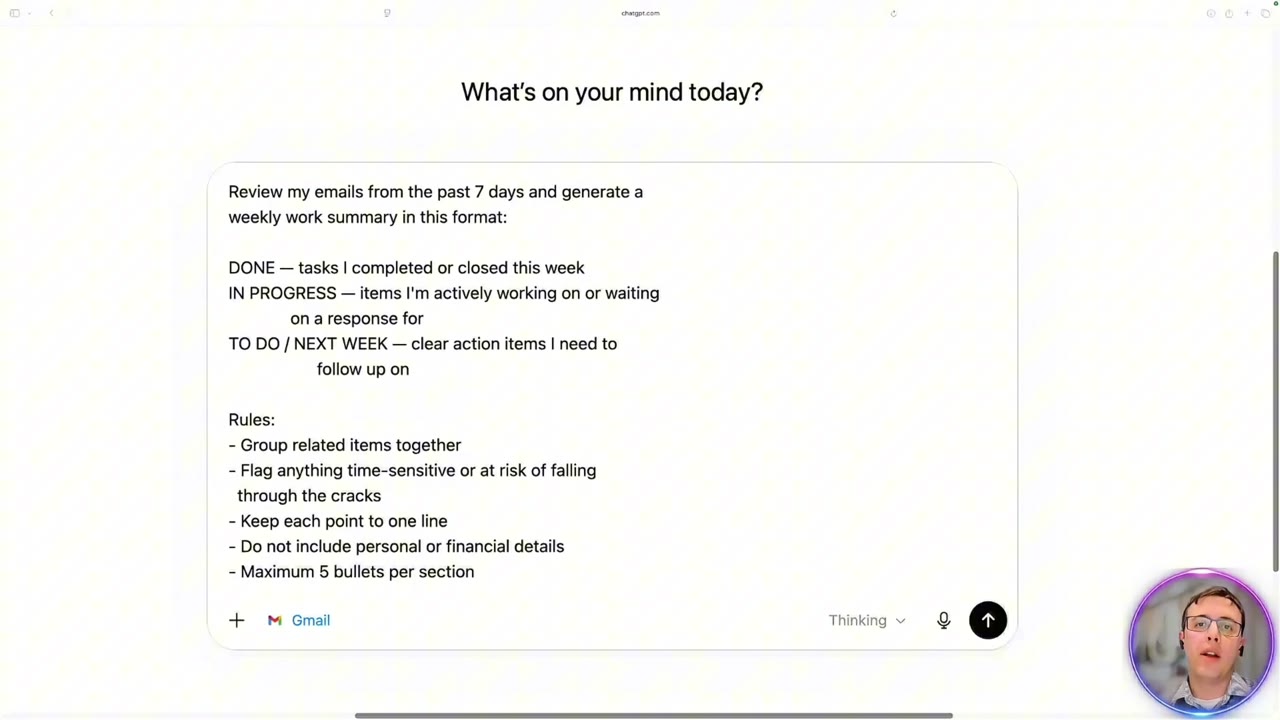
Friday’s update is easier to write when you start with evidence of the week. Thiago’s demonstration uses email activity to prepare three short sections: Done, In progress, and To do. The useful result is a draft you can check against the original conversations.
What you’ll learn
- Define a reporting period and retrieve relevant email activity.
- Separate completed outcomes from promises and ongoing work.
- Turn the results into a concise update for your manager.
- Catch work that never appeared in your inbox.
Before you start
Use an account and information you are permitted to use for this task. The video connects Gmail through ChatGPT’s settings; an Outlook connection is another possibility when available. App names, connection controls, and supported actions can differ across accounts. Review the account and requested access before connecting it.
If your email app is unavailable, supply selected, permitted email excerpts instead. Include dates and enough context to identify the project, but remove information your report should not contain. You do not need to connect an entire mailbox to practice the method.
1. Define the week precisely
Replace “this week” with a start and end date. If your team works across time zones, specify the reporting time zone too. Tell ChatGPT which projects belong in the report and whether the intended reader needs detailed activity or just outcomes.
Sent messages often show what you delivered. Replies may confirm acceptance or reveal that something is still outstanding. Ask for both sides of relevant conversations rather than treating every sent message as a finished task.
2. Request three short sections
This adapted prompt follows the structure demonstrated in the video. Replace the brackets before running it:
Review the email activity available to you from [start date] through [end date], in [time zone], for [projects]. Draft a weekly report with Done, In progress, and To do next week. Use at most five one-line bullets per section. Focus on outcomes, blockers, and commitments. Exclude personal details and financial information. Do not invent completion dates, owners, or deadlines. Put uncertain items in a separate review list and link to supporting messages where available. Prepare the report only; do not send it.
A short output is easier to scan, but the five-bullet limit is not a completeness guarantee. Ask for any omitted commitments separately so that a formatting limit does not hide an important obligation.
3. Check the meaning of “done”
Read each completion claim against the thread. “I will send this tomorrow” is a commitment. “Here is the file” shows delivery, but may not establish that the recipient accepted it. Choose wording that matches the evidence and your team’s definition of completion.
For ongoing work, keep the next step visible. “Vendor review in progress; waiting for the revised quote” tells a manager more than “Worked on vendors.” For next week, preserve actual agreed dates and leave unconfirmed dates unspecified.
4. Add work outside email
The video uses the inbox as a work log. It is still only one source. A meeting decision, an offline analysis, or a task completed in another system may be absent.
Compare the draft with your calendar, task list, and own notes. Add missing outcomes yourself or supply those records for another pass. If ChatGPT retrieved only part of the week, narrow the search by project or day and reconcile the pieces before calling the report complete.
5. Share a reviewed version
Remove duplicated bullets, resolve ambiguous ownership, and check that no confidential detail slipped through. Read the final update as your manager would: what changed, what is blocked, and what needs attention next?
Save the prompt with placeholders for the next reporting period. Reusing the structure is useful; reusing last week’s facts without checking is not. Keep a copy of the reviewed report in your normal work system so it remains available for future planning.
Common questions
What if the report says I finished something I only discussed?
Correct the status and ask for evidence supporting each remaining completion claim. Review the original messages instead of relying on the summary’s confident wording.
Does this automatically send my weekly update?
This exercise prepares a draft. Review it and use your normal sharing process. A connected app’s ability to send messages is separate from a request to summarize them.
For a report based on several long documents, continue with the NotebookLM briefing workflow.


