Microsoft Copilot · PRACTICAL GUIDE
Turn four business files into a checked leadership briefing with Copilot Notebooks
Prepare a leadership review with Copilot Notebooks, verify financial changes and deadlines, then build a briefing and editable presentation.
Watch the original tutorial
Open the original video on YouTube ↗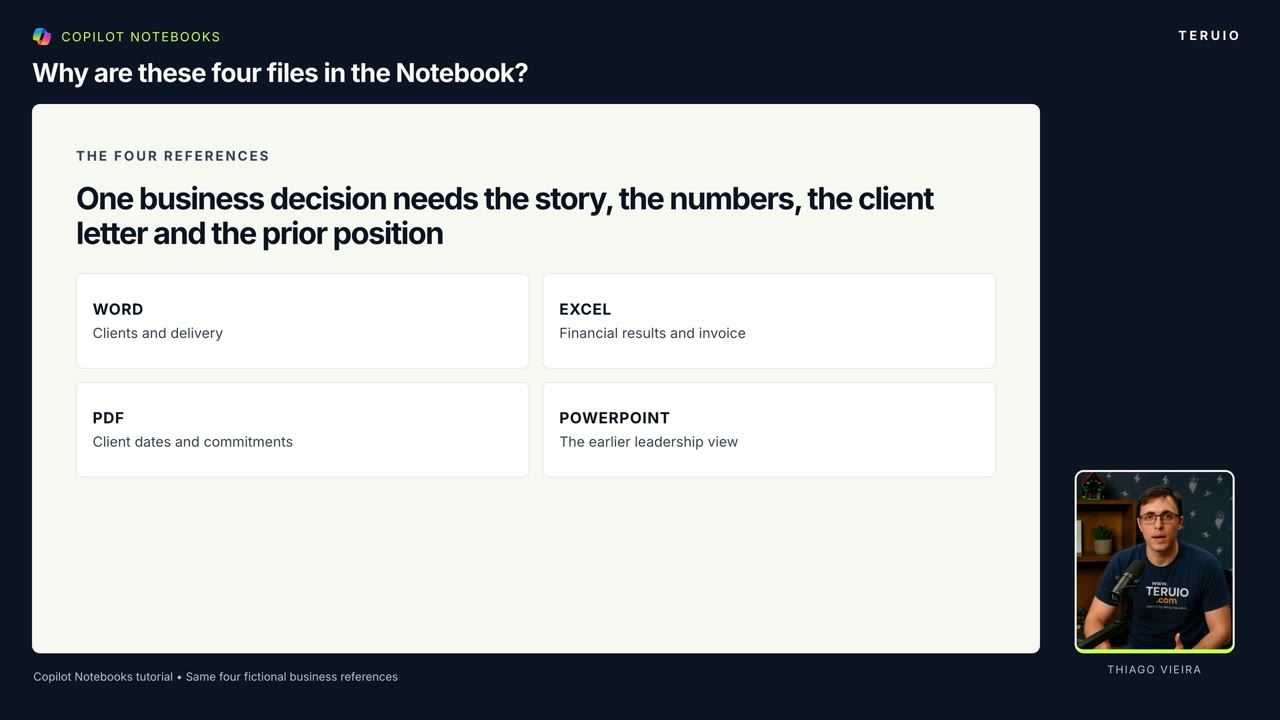
A leadership presentation is only useful if it asks people to make the right decisions. In Thiago’s Copilot Notebooks example, an organized first draft still needed two important corrections: which deadline applied to a recovery plan, and which work a proposed contractor would perform.
The business information in this tutorial is fictional. The guide is based on the creator’s local captions, including the narrated corrections. It does not treat the example’s numbers or dates as facts about a real client.
What you’ll learn
- Organize four files around one business question.
- Explain a financial change using source documents.
- Compare an earlier review with the current situation.
- Check deadlines and approval conditions before creating slides.
Before you start
Use the Copilot Notebooks experience available to your account. The tutorial shows Thiago’s account; supported reference types and features can differ. Consult Microsoft’s notebook licensing guidance if you cannot access a feature.
Prepare an operations update, a financial workbook, a client letter, and the previous review presentation. Only add information you are authorized to use. Keep the originals available for checking.
1. Create a notebook for one review
In the demonstration, the notebook is named “October Business Review.” Add the four files as references and confirm that the intended versions appear together.
Each source has a different role. The operations update explains delivery problems. The spreadsheet holds the financial figures. The client letter defines dates and approval conditions. The previous presentation shows what leadership heard last time.
Start with the business question: ask Copilot to review the files and identify what needs attention at the leadership meeting. Do not start by asking for a polished slide deck. First establish what the deck needs to explain.
2. Investigate the financial change
The example raises a useful question: why did profit fall when revenue increased? Ask for a simple table of the main cost changes and an explanation using only the notebook’s files.
The narrated example reports September revenue of CAD $132,000, operating profit falling from CAD $24,000 to CAD $18,000, and delivery costs increasing by CAD $22,000. Lower operating expenses offset only part of that increase.
Open the financial reference and compare the figures with the answer. Check whether the explanation is supported by the operations update as well as the numerical table. A citation helps locate the evidence; it does not remove the need to inspect it.
3. Compare “before” and “now”
Ask what changed since the previous leadership review. Request a short table covering finances, client deadlines, and outstanding actions.
In the example, the Atlas launch target moves from October 14 to October 28. Harbour’s rollout is complete, while Maple’s training remains on schedule. The purpose of this comparison is to distinguish progress, delays, and decisions still required.
Keep proposed dates separate from accepted dates and completed work separate from planned work.
4. Draft the briefing, then challenge its commitments
Ask for a one-page briefing with key results, client updates, three urgent decisions, and next steps with owners. Request source references and an explicit statement of what still needs approval.
The first narrated draft grouped the recovery plan, validation, and successful test import under October 14. That wording could make leadership believe testing had to finish that day. Ask Copilot to compare the action table with the client letter.
The correction is specific: October 14 is the recovery-plan deadline. A successful test import is required before launch sign-off, but the letter does not say it must finish by October 14.
The second clarification concerns a contractor costing up to CAD $8,000. That contractor is for an additional dashboard, conditional on the client signing a CAD $12,000 change order. It is separate from staffing the existing CRM recovery.
These distinctions change what leaders are being asked to approve. Keep the conditions attached to the decision wherever it appears.
5. Generate slides from the corrected briefing
Ask Copilot to revise the briefing to about 350 words using the corrections. Only then request roughly eight slides with charts, client updates, decisions, an action plan, speaker notes, and source references.
The video requests an editable PowerPoint. Where your account provides that output, download it and open the actual file. Check the financial charts, timeline, decision wording, and named owners. Review and adapt the design before presenting it.
If a generated file is unavailable in your account, the checked briefing still gives you a structured source for building the presentation yourself.
Troubleshooting and common questions
What if the files disagree?
Ask Copilot to identify the disagreement and show the supporting passages. Resolve which source governs the decision before asking it to produce final wording.
Should I ask for slides first?
The demonstrated sequence checks the information before creating slides. This reduces the chance of spreading an incorrect deadline or approval condition across a polished deck.
Is the first briefing ready to use?
No. In this example, review changed two material details. Check the figures, dates, scope, and approval conditions, then regenerate downstream deliverables from the corrected information.


