Microsoft Copilot · PRACTICAL GUIDE
Choose the right Copilot workflow for your task
Use Thiago’s nine-feature overview to assess your account, choose a focused workflow, preserve useful context, and check a finished deliverable.
Watch the original tutorial
Open the original video on YouTube ↗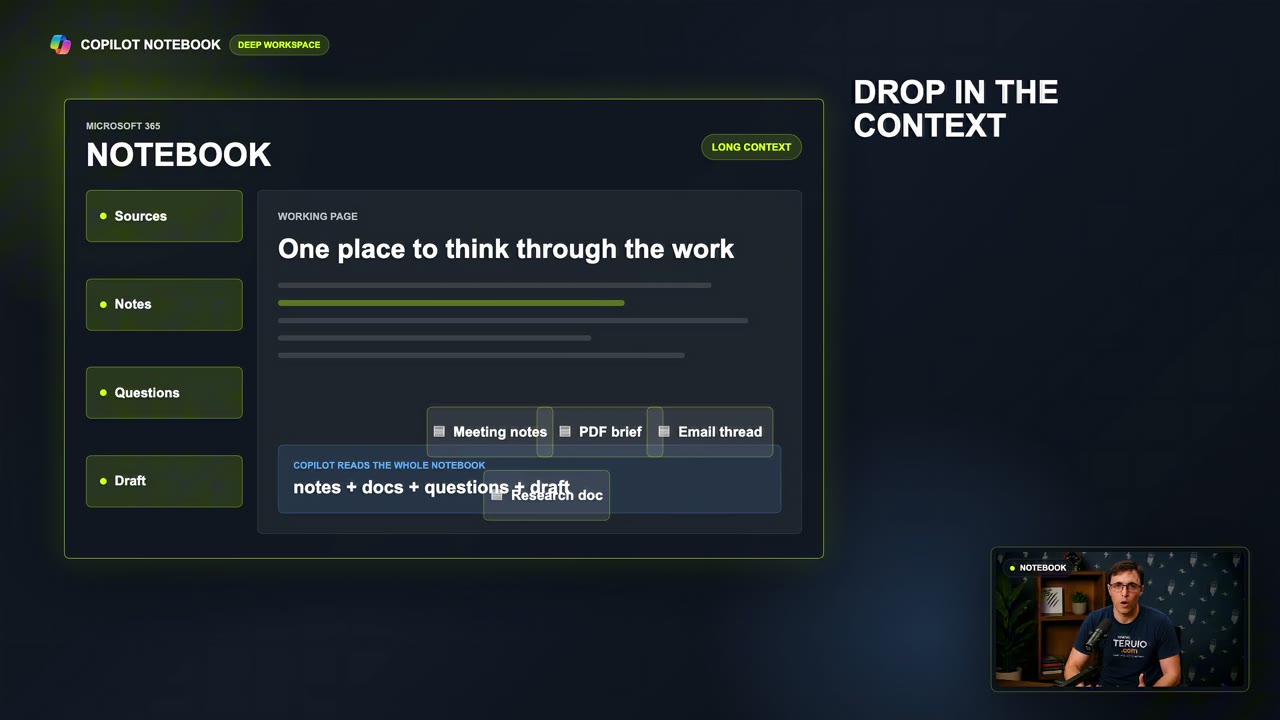
Thiago’s nine-feature overview encourages viewers to move beyond a single question in chat. The practical next step is to match one real task to the capabilities available in your own account, then produce something you can review and use.
The recording covers several Copilot experiences. Names, commands, and access can differ across personal accounts, work accounts, licenses, and organizational settings. Treat the overview as a set of possibilities to investigate rather than a promise that nine identical controls will appear on your screen.
What you’ll learn
- Check which account and experience you are using.
- Decide whether a task needs conversation, source context, or multi-step work.
- Make a recurring process easier to repeat.
- Evaluate the final document instead of stopping at a good-looking answer.
1. Begin with your account and one task
Confirm the signed-in account and choose a task you are permitted to perform there. Examples include drafting a message, summarizing a meeting, comparing supplied reports, or preparing a project brief.
Write what the finished result should contain. “Prepare a meeting summary with decisions, unresolved questions, and next actions” is easier to assess than “Help me with this meeting.” If a feature from the video is missing, use the available equivalent or ask your organization about access. Do not move internal information to another account simply to find a button.
2. Use chat for a small, bounded request
For a short message or a focused question, start with a direct request and enough context to answer it. Review the response, then ask a specific follow-up.
The video mentions shortcuts such as brainstorm, explain, and plan. If your interface does not offer those commands, describe the same task in ordinary language: request three options, an explanation of a paragraph, or a plan with dependencies. Literal slash commands are not required for this exercise.
3. Add source context when the answer depends on it
A long report or a collection of project material needs more than a vague question. Provide the relevant sources and explain which version is current. Ask the tool to identify missing information and cite the material supporting important claims.
Microsoft’s Copilot Notebooks guidance describes grounding responses in notebook references. If that experience is available, organize the relevant material there. For a worked example, use the leadership briefing guide.
Do not assume that every file was read in full or that old project context is still accurate. Check which sources support the answer and update obsolete material.
4. Save the method for recurring work
The video describes teaching AI your process through reusable instructions. Begin with a plain checklist: inputs, output format, checks, and the point at which you review the result. You can reuse that text even when a dedicated skills feature is unavailable.
For example, a meeting-summary method can require separate sections for confirmed decisions, proposed actions, and unresolved questions. Test it on two different transcripts. If it invents owners or deadlines, tighten the instructions and check again before relying on the method.
5. Expand into multi-step work deliberately
An assignment that searches sources, creates files, and interacts with other applications needs clear scope. Identify the permitted information, expected deliverables, and actions requiring review. Connected tools can have different read and write capabilities; seeing a connection does not prove that every action is supported.
Use the delegation guide to turn the task into a concrete brief. Start with a small output you can inspect before asking the system to handle a larger workflow.
6. Finish with a usable deliverable
Move the reviewed result into the document or workspace your team uses. If Copilot Pages is available, it may fit that handoff; a normal document can also work. Check headings, source references, permissions, and the actual saved file.
Try the same workflow for two weeks. Record preparation time, review time, missed details, and revisions. Compare it with your previous method. The useful outcome is evidence that a particular task improved, not the number of features you managed to use.


