Microsoft Copilot · PRACTICAL GUIDE
Use Copilot Voice for planning, brainstorming, and speaking practice
Learn the difference between dictation and Copilot Voice, ask useful follow-ups, discuss a shared window, and rehearse a conversation.
Watch the original tutorial
Open the original video on YouTube ↗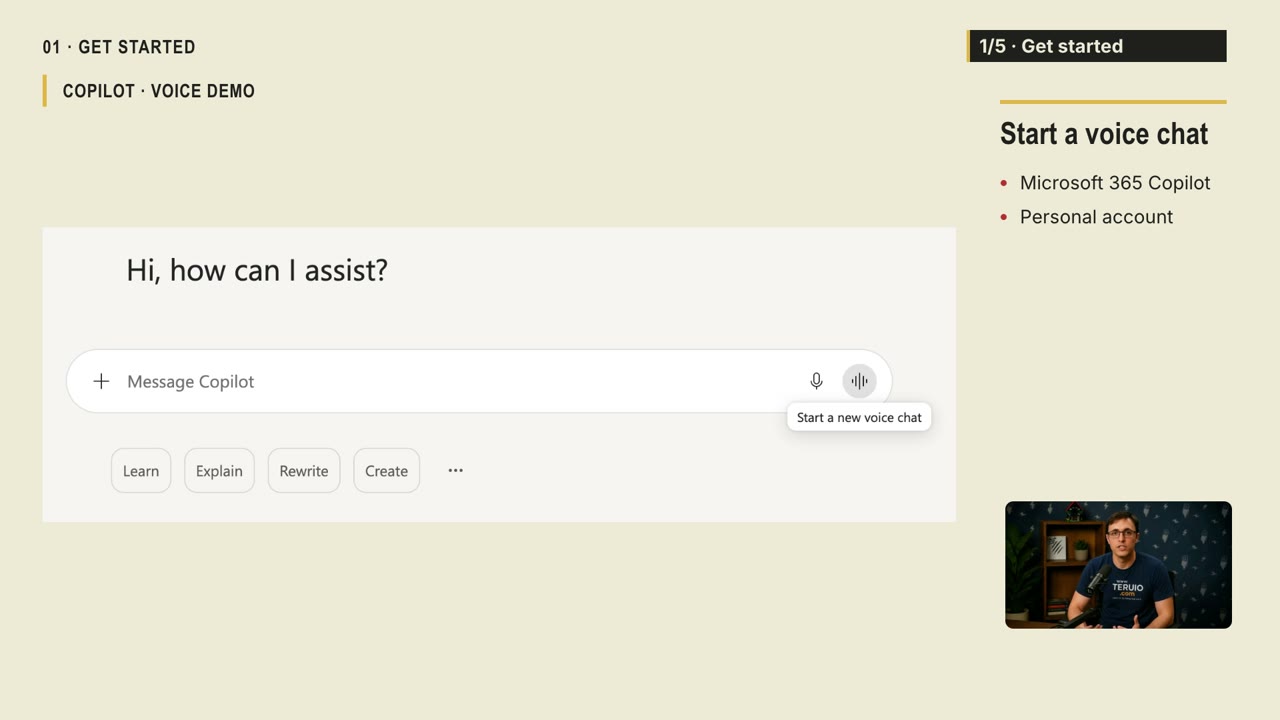
Voice is useful when an idea is easier to explain aloud than type. In this tutorial, Thiago uses Copilot for a changing family-trip plan, presentation brainstorming, a shared map, and speaking practice. The common pattern is a short initial request followed by focused questions.
What you’ll learn
- Choose voice chat rather than dictation.
- Add constraints without repeating the whole request.
- Ask for shorter responses and useful follow-up questions.
- Check a shared window and end the session deliberately.
Before you start
The original tutorial identifies the Microsoft 365 Copilot app signed in with a personal account. Your interface may differ by application, account, and device. Microsoft’s voice feature guidance explains the distinction between dictation and voice chat.
Use a working microphone and speaker or headphones. Check the selected input and output devices if either side of the conversation cannot be heard.
1. Start a conversation, not a dictated message
Look beside the message box for the control that starts a voice chat. Dictation turns speech into a text message; a voice chat supports a spoken back-and-forth. Choose the latter for these exercises.
Start with a simple request. The video uses an easy dinner idea based on salmon, potatoes, and green beans, and asks for a short answer. The goal is to practice giving context and listening to a response, not to follow an unverified cooking instruction.
Ask one follow-up. This establishes how the conversation works before you try a complicated task.
2. Change a plan through follow-up questions
The trip example starts with three days in Seattle and two children aged three and six. It specifies interests such as animals and hands-on activities.
Then the plan changes: rain becomes a hypothetical constraint, the zoo moves to another day, and an indoor option is considered. The example is not a live weather forecast.
You can follow the same conversational pattern:
- State the goal and the important constraints.
- Listen for the proposed plan.
- Change one constraint, such as timing or the audience’s needs.
- Ask Copilot to revise only the affected part.
- Request a short final summary you can review.
The video asks what to check before booking. Verify hours, ticket availability, age guidance, and closures on the attraction’s official website. Spoken suggestions are a starting point, not a booking confirmation.
3. Develop a presentation idea aloud
Thiago asks for five angles on reducing unnecessary meetings. After hearing options, he chooses the time-cost angle and develops it further.
This is a useful way to move from a vague topic to a specific proposal. Ask for several approaches, choose one, and explain why it fits your audience. Then talk through a rough version of the idea.
The example becomes a two-week trial of shared status updates, with meetings retained for blockers and decisions. A useful final question is how the team will assess what was missed during the trial.
Requests about response length or waiting are conversational instructions, not guarantees. If the response is too long, ask for a shorter version and continue from there.
4. Discuss only the window you intend to share
In the video, Thiago opens a zoo map and shares that window. He asks about labels visible on the map and then discusses a route. This is different from asking for general travel suggestions.
If your account offers visual sharing during voice chat, select the intended window and confirm what is visible before asking about it. Check small labels yourself; the narration explicitly notes that they can be misread.
Stop sharing when the visual discussion is finished. See Microsoft’s vision guidance for the supported experience.
5. Rehearse one answer at a time
The interview example asks Copilot to play the interviewer for a project-coordinator role, ask one question at a time, and suggest one improvement.
Answer aloud before listening to the feedback. Then try the answer again with a specific change. You can use the same process to practice the opening of the presentation you brainstormed.
For language practice, the video uses a café conversation in French and asks for a slower repetition with an English explanation. Keep the exercise narrow enough that you can compare what you intended to say with what was understood.
Finish and troubleshoot
Use the microphone control to mute when needed, and the end control to close the voice session. On the mobile example, Thiago taps X to finish.
Copilot cannot hear me. What should I check?
Check whether the session is muted and whether the intended input device is selected. Review the app’s microphone permission if access is unavailable.
I cannot hear the reply. What should I check?
Review output-device selection and volume. The tutorial shows an audio menu for selecting devices; its location may vary.
Can I trust spoken facts without checking?
No. The same verification applies as with typed answers. Check important details against the relevant source, and stop sharing the window or end the session when finished.


