Microsoft Copilot · PRACTICAL GUIDE
Build a practical Copilot work routine in seven days
Use Copilot for email, meeting follow-ups, documents, and spreadsheets with a seven-day practice plan based on Thiago Vieira’s tutorial.
Watch the original tutorial
Open the original video on YouTube ↗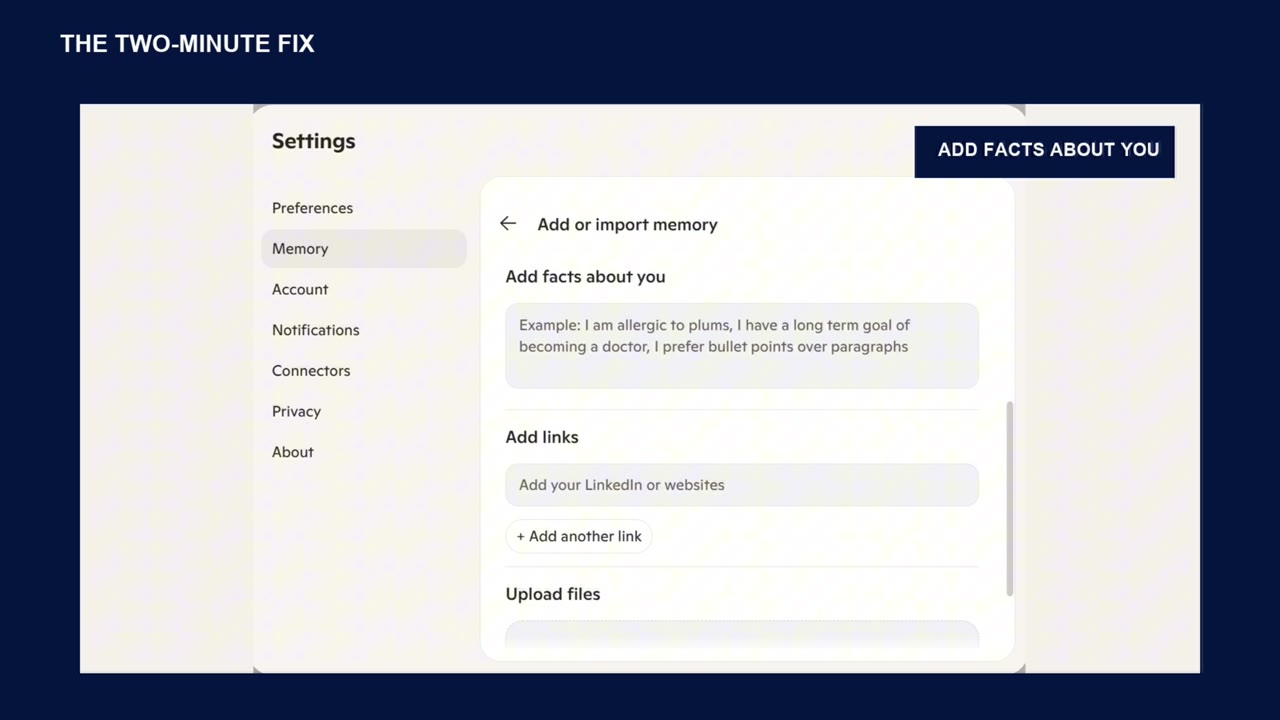
A useful Copilot routine starts with a task you already understand. That gives you a way to judge whether the answer helps. In this tutorial, Thiago moves from better instructions to everyday work tasks, then to keeping related project information together.
The original video discusses personal time savings. This guide does not promise a particular number of hours saved. Your results depend on your work, the tools available in your account, and how carefully you review the output.
What you’ll learn
- Give Copilot enough context to produce a useful draft.
- Find unresolved issues in an email conversation.
- Use meeting notes and spreadsheet questions as focused practice tasks.
- Build a seven-day routine without trying every feature at once.
Before you start
Use the Copilot experience approved for your work. Access inside Outlook, Teams, Word, and Excel depends on the account, subscription, application, and organization settings. If a control in the video is missing, check with your administrator rather than assuming every Copilot product includes it.
Choose sample information or material you are permitted to use with the service. Keep the original email, notes, or workbook available so you can compare the answer with its source.
1. Describe how you want the answer written
The video starts with personalization: your role, industry, and writing preferences. Where your account offers personalization, add useful context there. You can also include that information directly in an individual request.
The teaching example asks for clear, direct language without filler and requests sources and uncertainty flags. Asking for citations is a useful instruction, but it does not make an answer automatically trustworthy. Open the cited material and check what it actually supports.
Structure a request in three parts:
- Context: Explain the situation and the information Copilot should use.
- Task: State the specific work you need done.
- Format: Describe the output you want, such as a table, short reply, or action list.
Use separate lines to make those parts easier to review before you send the request.
2. Find the unresolved work in an email thread
Open a long conversation in Outlook. If your account provides Summary by Copilot, use it to get oriented. The important follow-up from the video is:
What is still unresolved in this thread?
Read the proposed unresolved issues against the latest messages. An early request may have been answered later, and a decision may have changed. Before drafting a reply, confirm who owns each open item and what action is actually needed.
The goal is not simply a shorter email. It is a clearer view of the decisions you still need to make.
3. Use meeting information to catch up
The tutorial demonstrates asking what was missed and what participants disagreed on. Meeting transcription and Copilot availability depend on meeting policy and participant permissions. Follow your organization’s recording and transcription rules.
When an authorized transcript or meeting summary is available, ask a narrow question instead of requesting a generic recap. Check the answer against the relevant discussion before treating it as a decision or commitment.
A disagreement is not necessarily a final decision. Keep those categories separate in your follow-up notes.
4. Ask one concrete spreadsheet question
The video uses the example of finding projects more than 10% over budget. Start with a workbook whose columns and calculations you understand, then ask Copilot to identify the relevant rows.
Check the underlying definition: a percentage over budget compares the difference with the approved budget. A result based on absolute spending or an incorrect denominator answers a different question. Inspect a few rows yourself before relying on the full result.
Do not let a polished chart replace checking the source numbers.
5. Follow the seven-day practice plan
The original tutorial proposes one small exercise per day:
- Summarize a long email thread and check the unresolved issues.
- Draft a reply using your writing instructions.
- Review the summary of a meeting you attended or missed.
- Turn rough notes into a structured Word document.
- Create a PowerPoint outline from an existing document.
- Ask a plain-language question about spreadsheet data.
- Bring related project information together in a notebook.
Treat this as a practice sequence, not an automation that sends or changes anything without review. If a feature is unavailable, keep working with the tasks your account supports.
Troubleshooting and common questions
Why does the draft still sound generic?
Check whether your request explains the audience, task, and output format. “Write a professional email” gives much less direction than a request grounded in a specific conversation. Revise the prompt, then edit the draft in your own voice.
Does a citation mean the answer is correct?
No. A citation identifies a place to check. It may not support every conclusion in the answer. Verify the important details, particularly dates, numbers, and responsibilities.
Do I need to set up agents immediately?
No. The video introduces more advanced workflows after the everyday tasks. Begin with one repeatable task and evaluate its results before adding automation.
Your next step
Choose tomorrow’s first exercise now. After trying it, write down what helped, what you had to correct, and whether you would use the workflow again. That evidence is more useful than a broad promise about productivity.


